Triage the old Windows Media file first
Three checks prevent most WMV to WAV surprises
A playable WMV is a good starting point, but its codec, protection state, and duration determine whether a browser export is practical. Check these before committing to a long conversion.
Can it play?
Open the file in a current media player. A missing codec, damaged index, or DRM restriction can stop a converter from reading the stream.
What audio is inside?
MediaInfo or FFprobe can show WMA, MP3, PCM, sample rate, channels, and multiple streams. The extension alone cannot.
Can you store WAV?
16-bit stereo PCM at 48 kHz is about 11.5 MB per minute. A compressed WMV can expand to hundreds of megabytes.
| Possible source audio | What WAV changes | What to verify |
|---|---|---|
| WMA or another lossy stream | Decodes it into a larger PCM working copy for editing or analysis. | No lost detail returns. Compare the WAV with the source and avoid repeated re-encoding. |
| PCM audio | Provides a familiar WAV container for a PCM handoff, subject to this export's 16-bit settings. | Check original bit depth and channel layout for archival or measurement work. |
| Protected or unreadable media | Cannot be converted until the file is legally playable and available through an authorized export path. | Use the original Windows application; do not rename the extension to bypass DRM. |
For old WMV archives, playback and codec inspection are part of the conversion. A successful WAV is useful only after you verify its duration, channels, and source track.
WMV files often come from older Windows cameras, screen captures, training archives, or Windows Media Player workflows. The .wmv extension identifies the video container, but the soundtrack may be WMA, MP3, PCM, or another Windows Media-compatible stream. Converting to WAV removes the picture and writes an uncompressed 16-bit PCM working file for Audacity, a DAW, or a handoff that explicitly asks for WAV.
Legacy files need a little more checking than a modern MP4. A protected or damaged WMV may not be decodable in a browser, and a compressed WMA soundtrack does not gain detail because the output uses WAV. Keep the original, confirm that it plays in a trusted player, and reserve enough disk space for the expanded audio.
Converting WMV to WAV is almost always a preservation job. WMV is a dying format — Microsoft has deprecated it in favour of MP4, Windows Media Player is gone from current Windows builds, and WMA audio is unsupported by every browser ever shipped. If you have Windows recordings, PowerPoint captures, old camcorder discs or DVR exports sitting in this format, getting the audio out into uncompressed PCM is the durable move, because WAV plays everywhere forever.
Two things to know before you start. First, WMV always routes through the FFmpeg WebAssembly engine here, which costs a one-time ~30 MB download and works inside a 32-bit memory space — so keep files under about 500 MB, and if a conversion fails, extract the audio locally first. Second, WAV is uncompressed: about 11.5 MB per minute at 48 kHz stereo. A 30-minute Windows recording becomes roughly 345 MB. That is the right price for an archival master, but if you only need a listening copy, MP3 at 128 kbps gives you the same content in about 29 MB.
Under the hood
How the conversion works
WMV and WMA are related but different layers
Windows Media Video describes the video side of the file; WMA is a common audio codec inside it. A WMV can also contain another audio stream, so use MediaInfo or FFprobe when the exact source matters.
WAV is an editing copy, not a DRM solution
The converter can process a readable, unprotected file. It cannot lawfully unlock protected Windows Media content, and changing .wmv to .wav in the filename does not convert or remove protection.
Plan for expansion from compressed media
A 48 kHz, 16-bit, stereo WAV is about 690 MB per hour. The WMV may be far smaller because WMA compresses the soundtrack. Keep temporary exports on a drive with enough free space.
WMV uses the compatibility engine
WMV is handled through the FFmpeg WebAssembly engine rather than the fast browser path. The first use downloads and initializes the local engine, and large or unusual files can be limited by browser memory.
Verify old files in the receiving application
Open the WAV in Audacity, a DAW, or the analysis tool that will use it. Check duration, sample rate, channels, and any speed or pitch issue before deleting the source.
Preservation, not restoration
WAV stores the decoded samples exactly as WMA produced them. That stops further degradation and gives you a file every tool can open for the next thirty years. It does not undo the lossy WMA encode that already happened. Describing an export as "better quality" is only accurate in the sense that you have stopped adding more lossy passes.
The FFmpeg path and its limits
WMV is not decodable by WebCodecs, so every conversion here uses FFmpeg compiled to WebAssembly. It downloads roughly 30 MB on first use and runs in a 32-bit memory space, which caps how large a file it can handle. Under about 500 MB is comfortable; above roughly 2 GB it will fail.
Check what the audio actually is
Run ffprobe -v error -select_streams a:0 -show_entries stream=codec_name,sample_rate,channels -of default=nw=1 file.wmv. WMA Standard at 44.1 kHz stereo is typical; some DVR exports are mono at 8 or 16 kHz, which matters if you are planning transcription — 16 kHz mono still transcribes, but accuracy drops.
Budget the disk space
About 11.5 MB per minute at 48 kHz 16-bit stereo, 10.6 MB at 44.1 kHz, and half that for mono. A one-hour recording is roughly 690 MB. If that is impractical, FLAC preserves every sample at about 55% of that size, and MP3 gives you a listening copy at a tenth of it.
Select the right handoff for a WMV archive
WAV is a practical working format when the next tool expects PCM. Keep a compact or lossless archive copy as well when you need to preserve the original.
| Output | Best for | Trade-off |
|---|---|---|
| WAV / PCM | Editing, cleanup, transcription input, and legacy applications | Large file; source WMA quality is unchanged |
| FLAC | Lossless compressed storage of the decoded audio | Receiver must support FLAC; not a DRM workaround |
| MP3 | Small listening copy for broad device support | Adds a lossy encode and is less suitable for editing |
| M4A / AAC | Modern phone or library delivery | May be less compatible with older Windows software |
Common scenarios
When to convert WMV to WAV

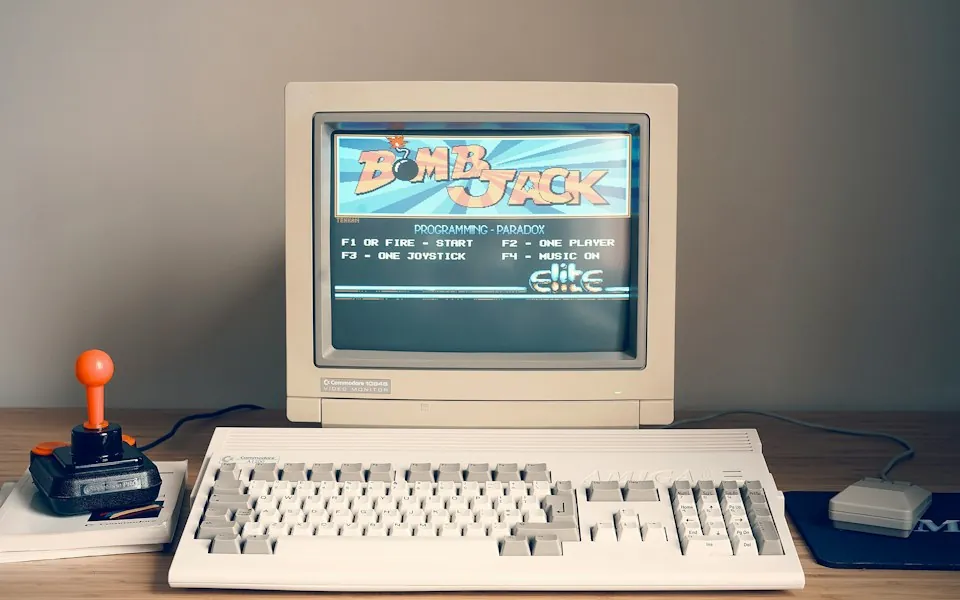
Restore audio from a Windows Media archive
Create a standalone WAV for a lecture, training video, or family recording so it can be cleaned up without opening the old video container. Preserve the WMV as the source record.
Prepare a legacy recording for Audacity
WAV gives Audacity a conventional PCM input for trimming, noise inspection, or level checks. Confirm the source track is the one you intend to edit.
Extract narration from a screen capture
Separate the voice track from an old Windows screen recording before transcription or a new tutorial edit. Check the first and last spoken words against the video.
Hand off audio to an older workstation
Some older production or classroom systems accept WAV more reliably than WMA. Use a short test export first, then convert the full file after checking the receiving software.
How to
Step by step
clip.wmv
Output: WAV · Lossless
OptionsConversion runs locally · this tab stays online during processing.
Extract audio- 1
Play and inspect the WMV
Confirm that the file opens and is not protected or damaged. If you need exact codec details, inspect it with MediaInfo or FFprobe before conversion.
- 2
Select the WMV file
Choose the .wmv source and keep a backup. The browser writes a new audio file and does not modify the old Windows Media file.
- 3
Keep WAV selected for PCM delivery
This page writes 16-bit PCM WAV. Choose MP3 or M4A when the final goal is compact playback rather than editing.
- 4
Verify the expanded audio file
Open the WAV in the target tool and check duration, channels, sample rate, and disk space before archiving or deleting temporary copies.
FAQ
Frequently asked questions
How do I convert WMV to WAV online?
Choose a readable .wmv file, keep WAV selected, and start conversion. The browser uses a local FFmpeg WebAssembly engine to extract audio and write a 16-bit PCM WAV.
Can I convert a DRM-protected WMV?
No. Protected media needs an authorized playback or export path from the application that owns the content. Renaming the extension does not remove DRM.
Is WMV to WAV lossless?
WAV is uncompressed PCM, but a WMA or MP3 source may already be lossy. The export preserves the decoded signal; it cannot restore information removed by the source codec.
How big is a WMV to WAV file?
A 48 kHz, 16-bit, stereo WAV is about 11.5 MB per minute, or roughly 690 MB per hour. Exact size depends on duration, channels, and sample rate.
Why does WMV conversion take longer than MP4 conversion?
WMV uses a compatibility engine that loads FFmpeg WebAssembly in the browser. The first load and unusual legacy codecs can take longer, and large files need more memory.
Will my WMV video be included in the WAV?
No. WAV contains audio only. Keep the original WMV when you need the picture, captions, or a way to confirm timing.
What should I check in Audacity after conversion?
Check that duration, sample rate, channel count, speed, and pitch match the source. Listen at the beginning and end before starting a restoration pass.
Why is WMV handled differently from MP4?
No browser has ever shipped a WMA decoder, so there is no native path. MP4, MOV, MKV and WebM use WebCodecs and stream; WMV, AVI, 3GP and MPEG go through FFmpeg WebAssembly, which is slower to start and limited to a 32-bit memory space.
How large will the WAV be?
About 10.6 MB per minute at 44.1 kHz 16-bit stereo, 11.5 MB per minute at 48 kHz, half that if the source is mono. A 20-minute Windows recording lands near 220 MB.
My conversion failed or the tab crashed. Why?
Almost certainly memory. The FFmpeg WebAssembly build is 32-bit and cannot hold very large files. Extract the audio locally with ffmpeg -i input.wmv -c:a pcm_s16le audio.wav and, if you still want our pipeline, feed the result back in.
Is the WAV higher quality than the original WMV audio?
No — it is identical audio in an uncompressed wrapper. WMA was already lossy. What you gain is universal compatibility and the ability to edit without another lossy generation, not extra fidelity.
Can I use this for transcription?
Yes, and WAV is the format most transcription services prefer. Be aware that old WMV recordings were often captured at 8 or 16 kHz mono; transcription still works but accuracy will be lower than from a modern 48 kHz recording.
Should I keep the WMV after converting?
Yes, at least until you have verified the WAV plays correctly and contains the track you expected. WMV is on its way out and WAV is not, but an original is always worth keeping until the copy is confirmed.
See also
Related converters